
 resize to match card
 OR
tape card to screen
Required: check your photo
Every order needs a photo check code. When your photo is taken, upload it here. The check takes a few seconds and gives you the code to enter when you order.
Check your photo →It checks the grey square, the camera angle, your finger direction and the skin creases. If it fails, it tells you what to fix, and you can try again.
Example Photo
📸 View Example Hand PhotoInstructions
- Resize the card box to match a real credit card
- Drag the bottom-right corner to adjust size
- Be precise - the credit card box must perfectly match your card
- Two checkered squares appear on the box once you resize it - this is normal (they help us measure)
- Alternatively, you can just tape a card to the screen for perfect precision
Taking the Hand Photo
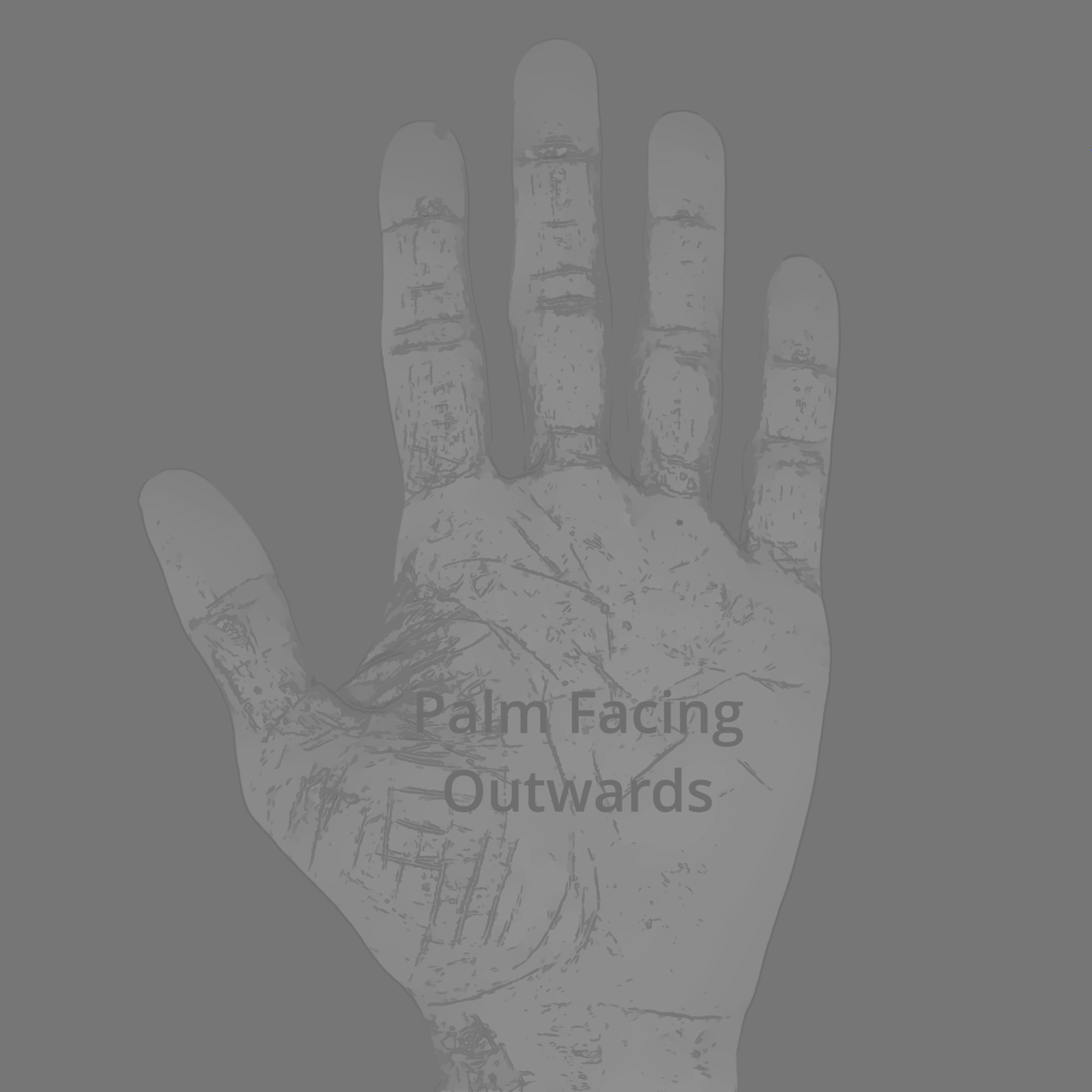
- Place your LEFT forearm, wrist, and hand completely flat on the screen
- Keep your wrist straight and neutral (no bending or rotation)
- Keep fingers straight, relaxed, and flat - do not over-splay (especially the pinky)
- Fingers must not be angled towards the thumb. Think of a straight line from forearm to wrist to hand to fingertips.
- Align with the on-screen outline
- Take a high-resolution photo with flash on
- Check the photo at gripgains.ca/photo-check and keep the code for your order
Critical Requirements
- The entire grey square must be visible (all four computer vision markers)
- Show the 4 corners of the credit-card box
- Keep minimal skew to the grey box - photo should be as straight as possible
- Capture your entire hand (fingertips to wrist crease)
- Finger creases must be clearly visible - good lighting and resolution are essential
Photo Quality Tips
- Do NOT crop - this often reduces resolution. Optical zoom only.
- Do NOT compress, edit, screenshot, or text the photo - this degrades quality
- Ensure photo is well-lit so finger creases are visible
- Lower the screen/monitor brightness to help get proper exposure
- Having a second person take the photo is recommended
- For better results, stand back and use camera zoom
Small Screen
- Portrait mode works better on smaller screens
- When alone, place your device flat and position your hand above it for the best angle